Workflows in OneUptime: Slack Notifications

I’m on a mission to get rid of SaaS in my business and chose One Uptime as my go-to monitoring tool.
Slack notifications are a bit convoluted as the tools is built for developers. So here’s a step-by-step guide with pictures and code.
The Basics
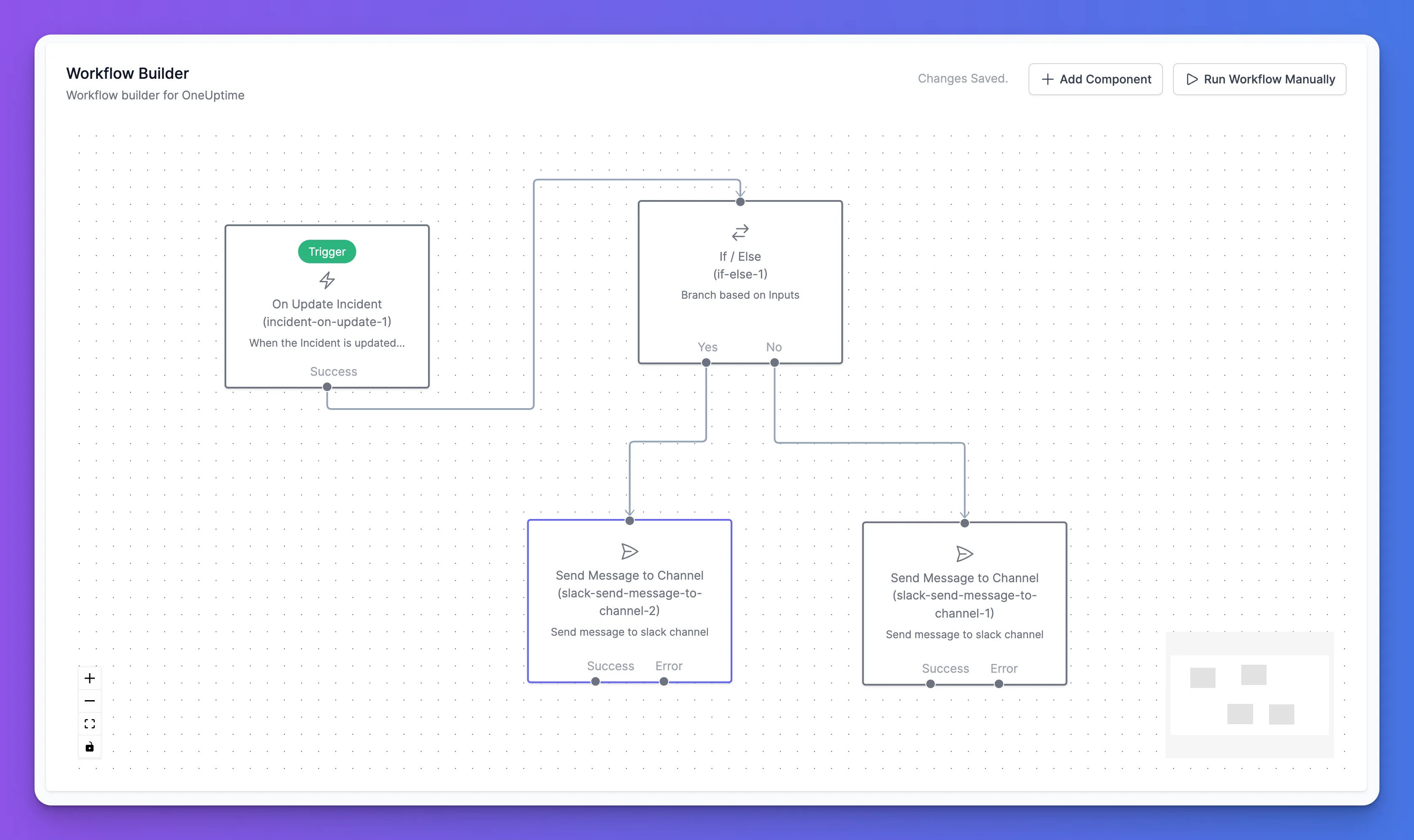
Getting Slack notifications up & running requires use of their Workflow Builder. That’s the easy part. You just need one trigger and one component. As you can see in the screenshot.
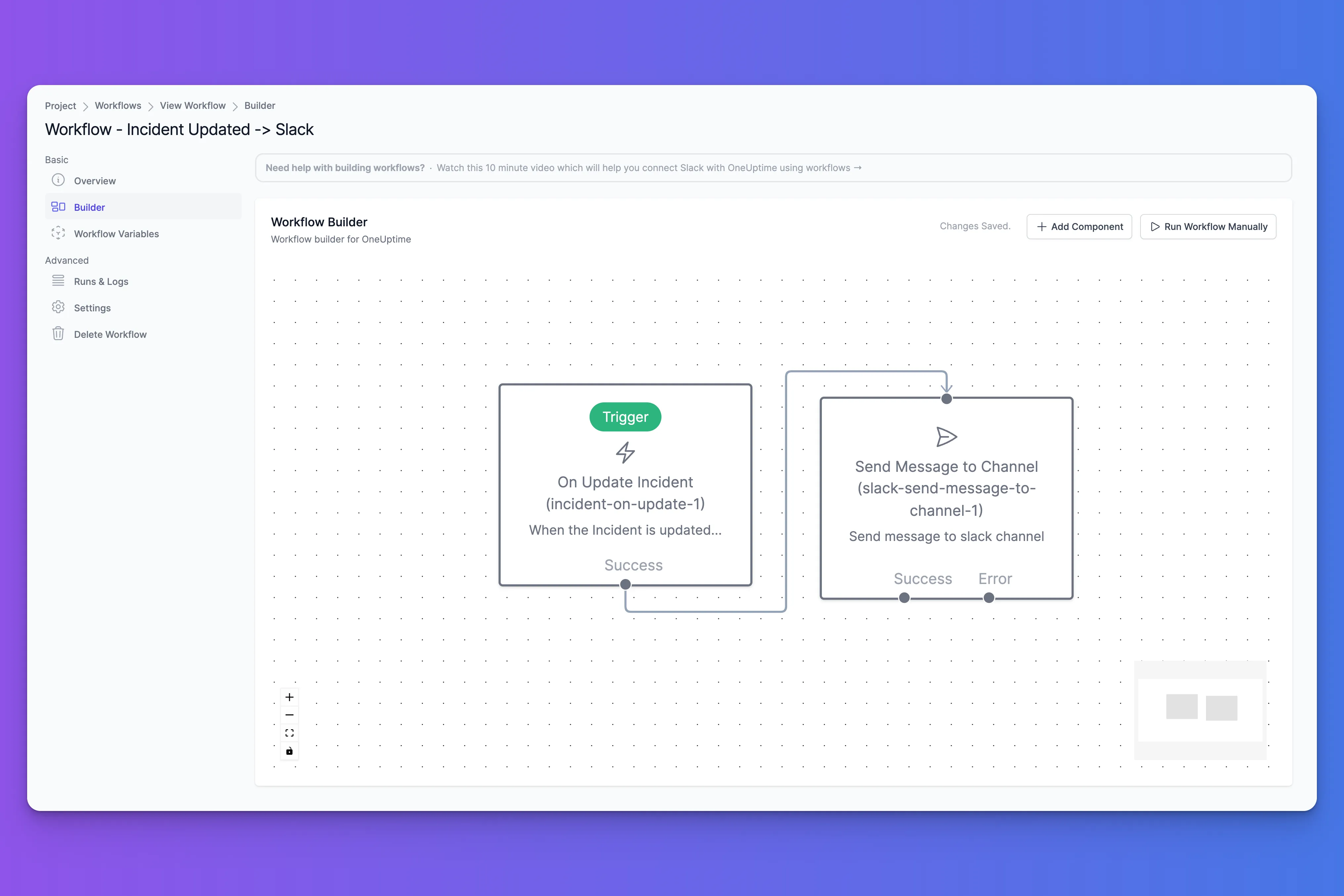
One Uptime Workflow Builder
I found that it’s easier to use the “On Update Incident” Trigger, because this is also triggered when an incident is created.
Slack Webhook
Setup a Webhook to post to Slack:
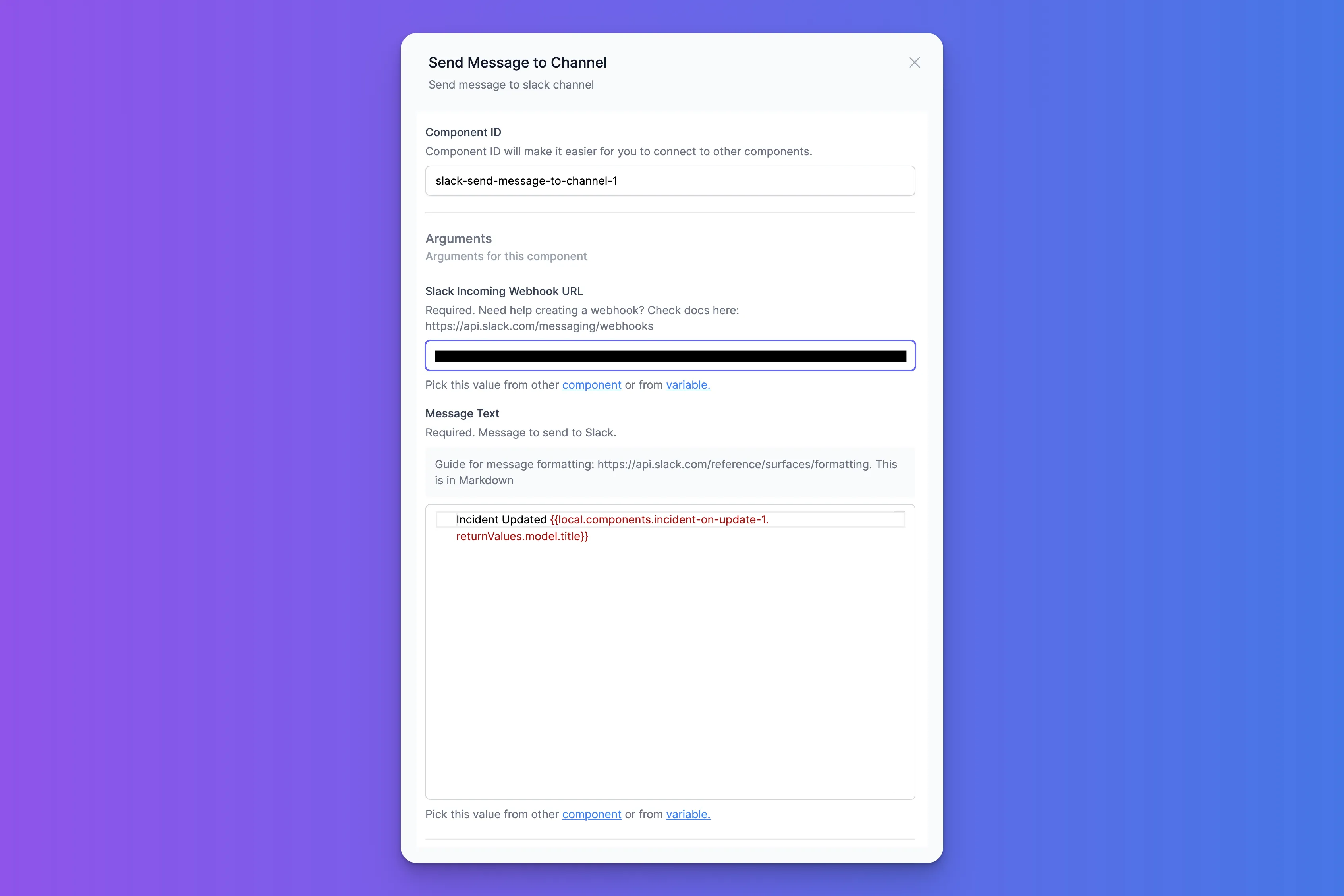
Send Messsage Action via Webhook
This gives you this:
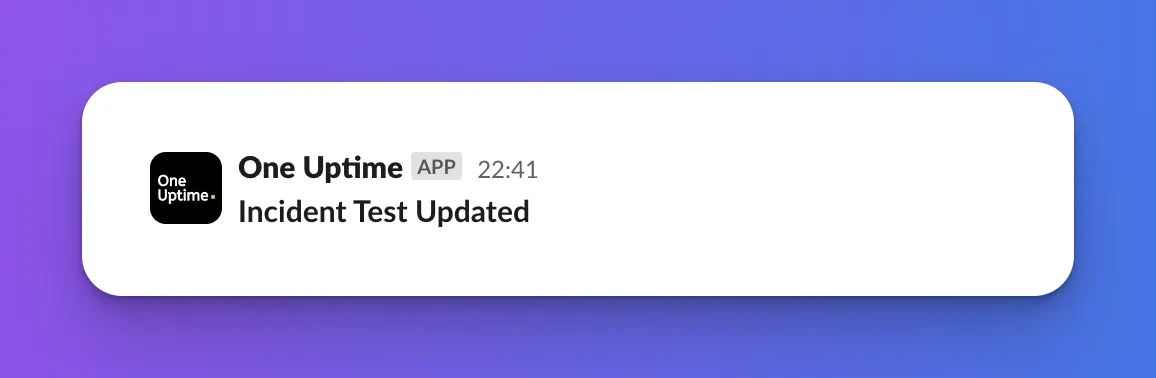
Getting Incident Info
Sending meaningful messages requires some scripting and tinkering. First, make sure the trigger passes the necessary info to the Action by configuring the Select Fields property with the following JSON:
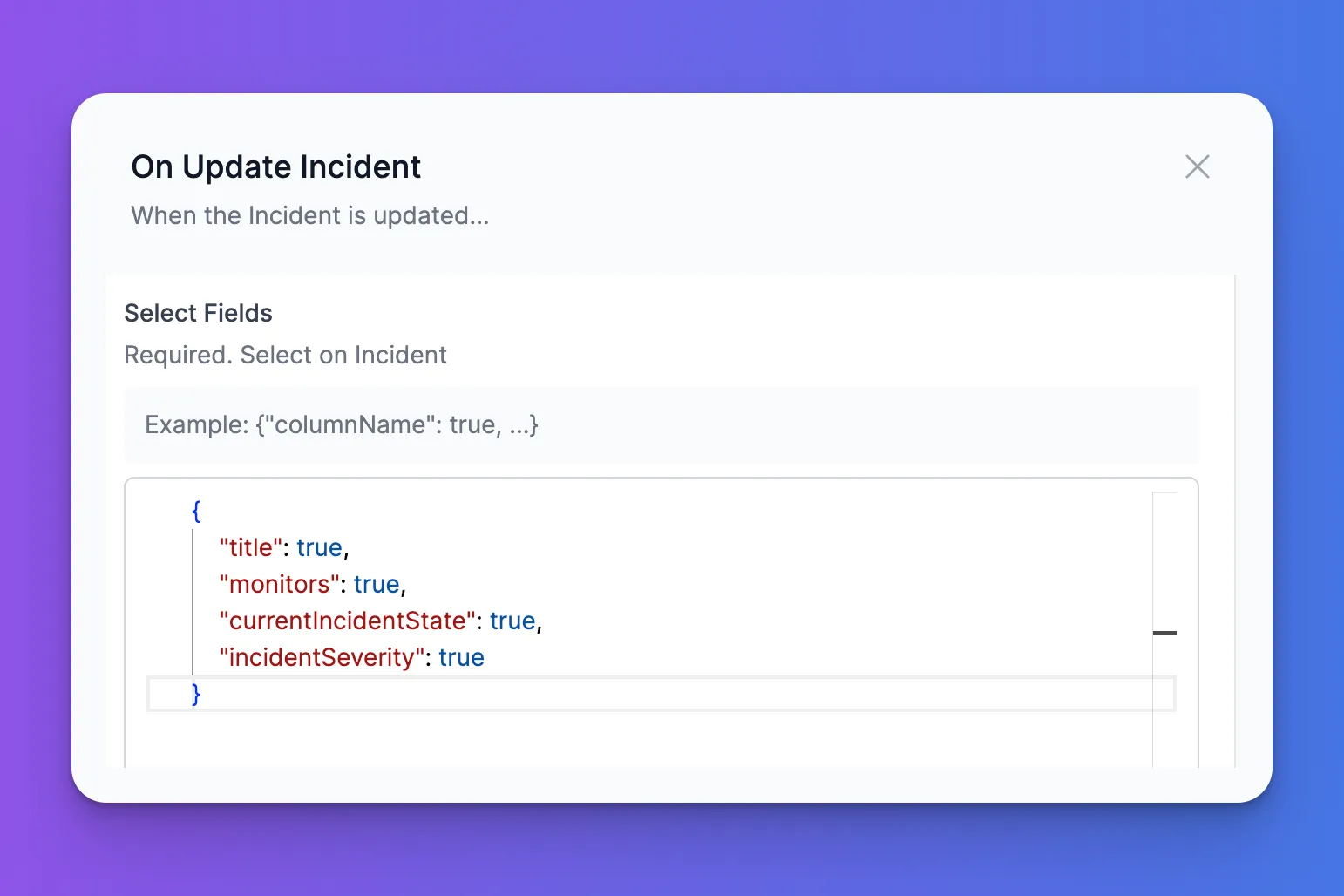
Select Fields on Trigger
{
    "title": true,
    "monitors": true,
    "currentIncidentState": true,
    "incidentSeverity": true
}
Available fields are listed in the API docs: https://oneuptime.com/reference/introduction
And you can learn more about the Selection process here:
 Data Types
Include Nested Fields
Change the Select Fields JSON like this:
{
    "title": true,
    "monitors": true,
    "currentIncidentState": {
        "name": true
    },
    "incidentSeverity": {
        "name": true
    }
}
This allows you to reference the nested fields in your message template:
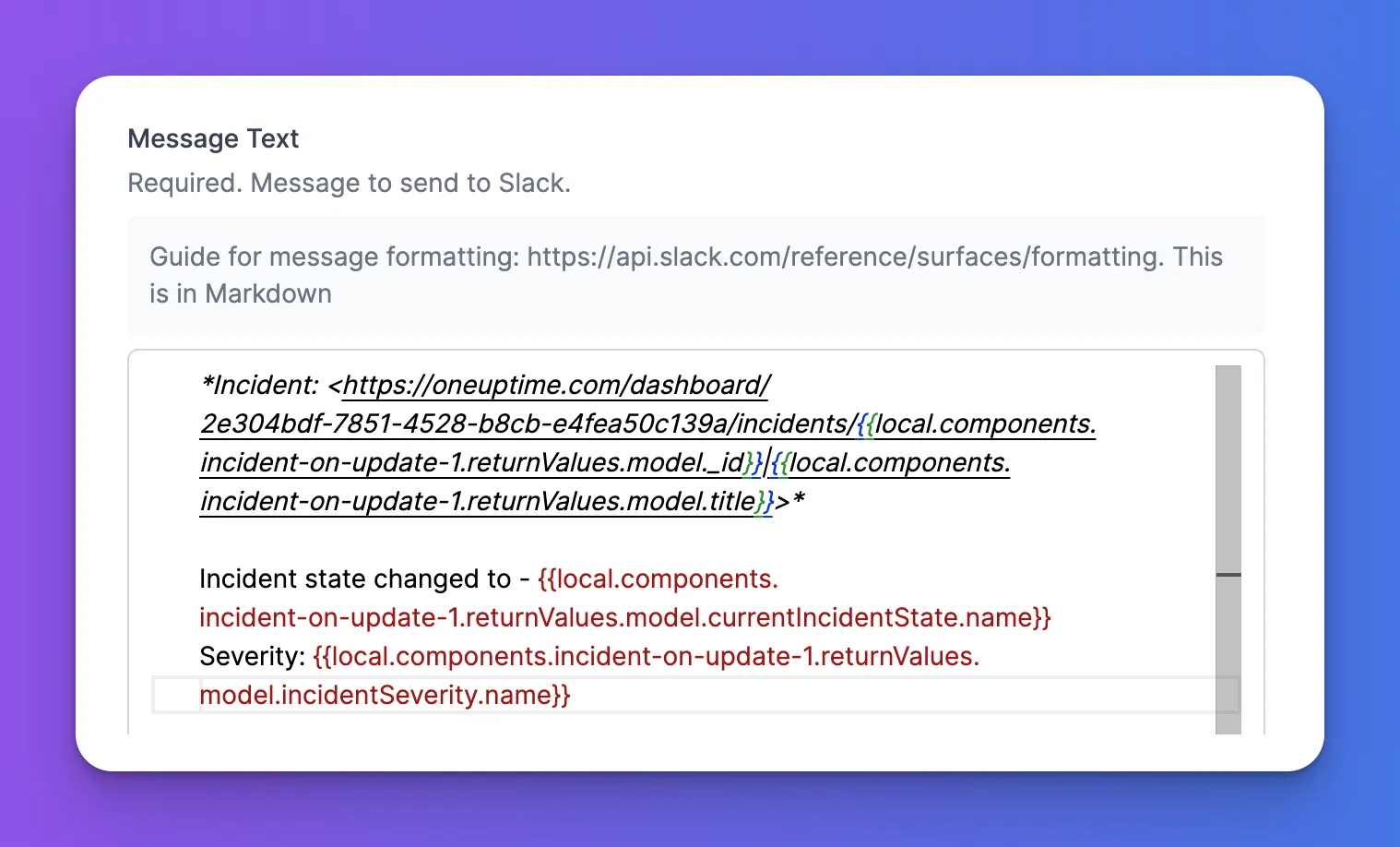
Final Message Source
Which gives you this message in Slack:
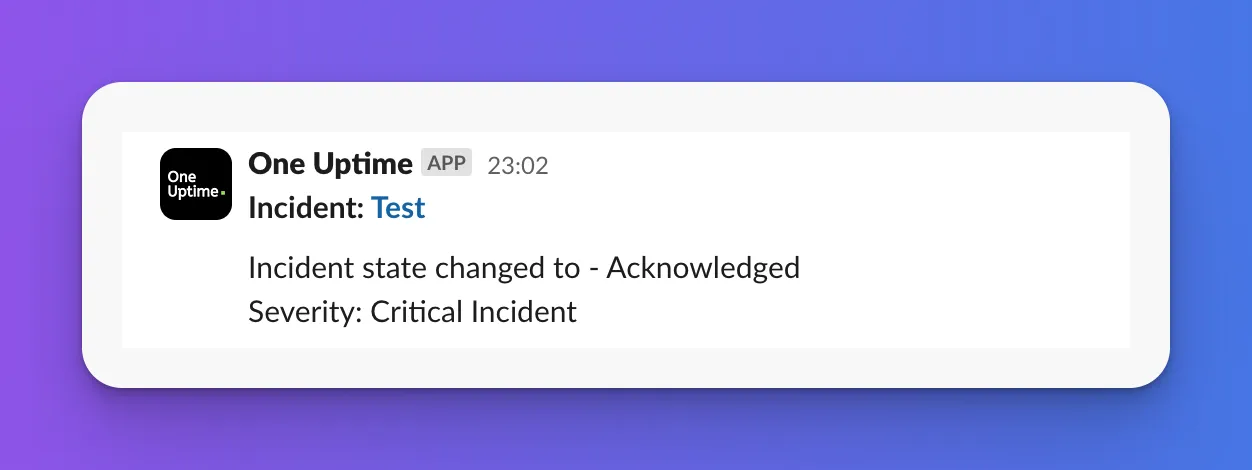
Final Message in Slack
Go Fancy
Add a switch based on the incident state, to use two different formattings:
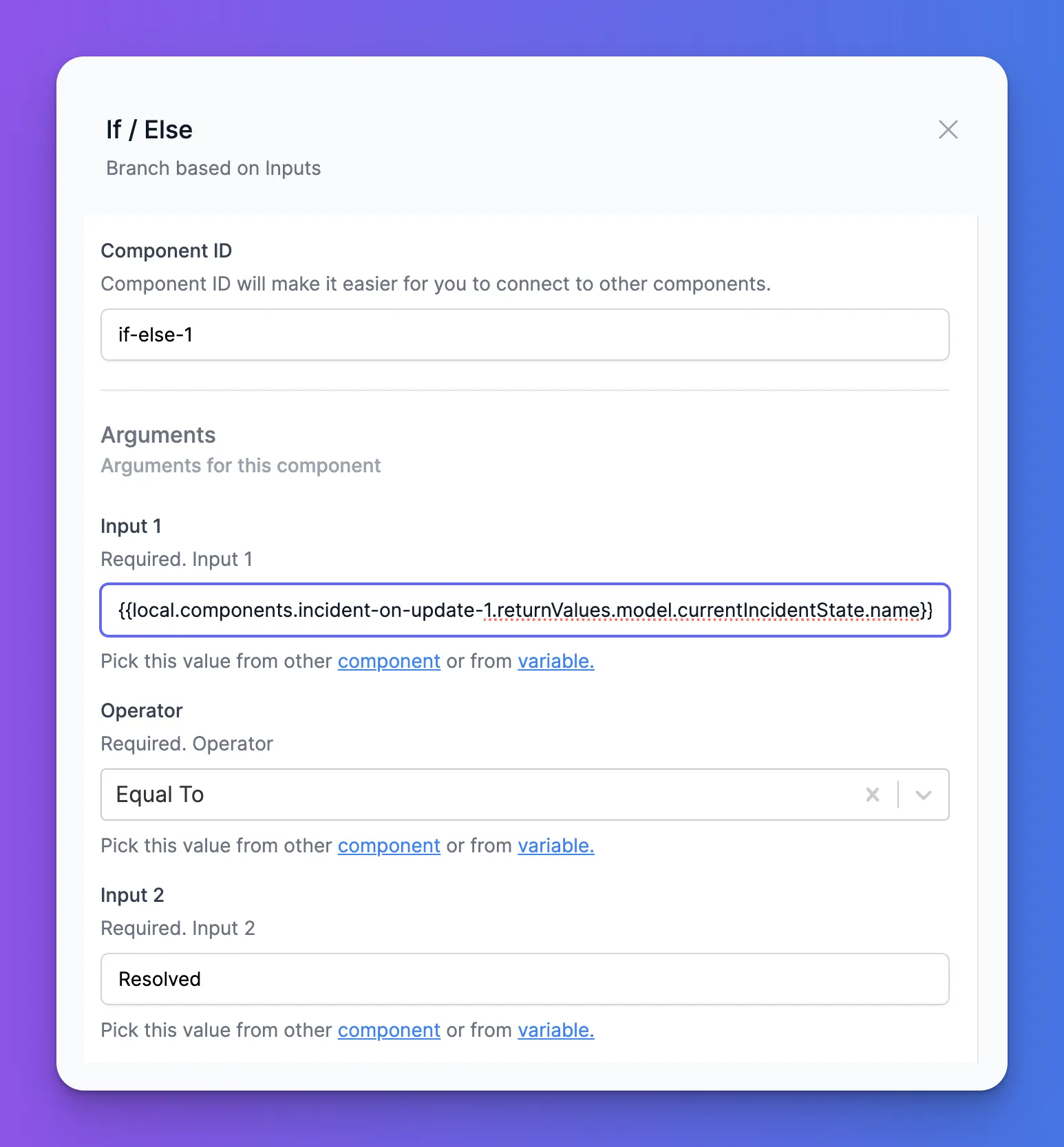
Expand the Markdown Message Template a bit, like this:
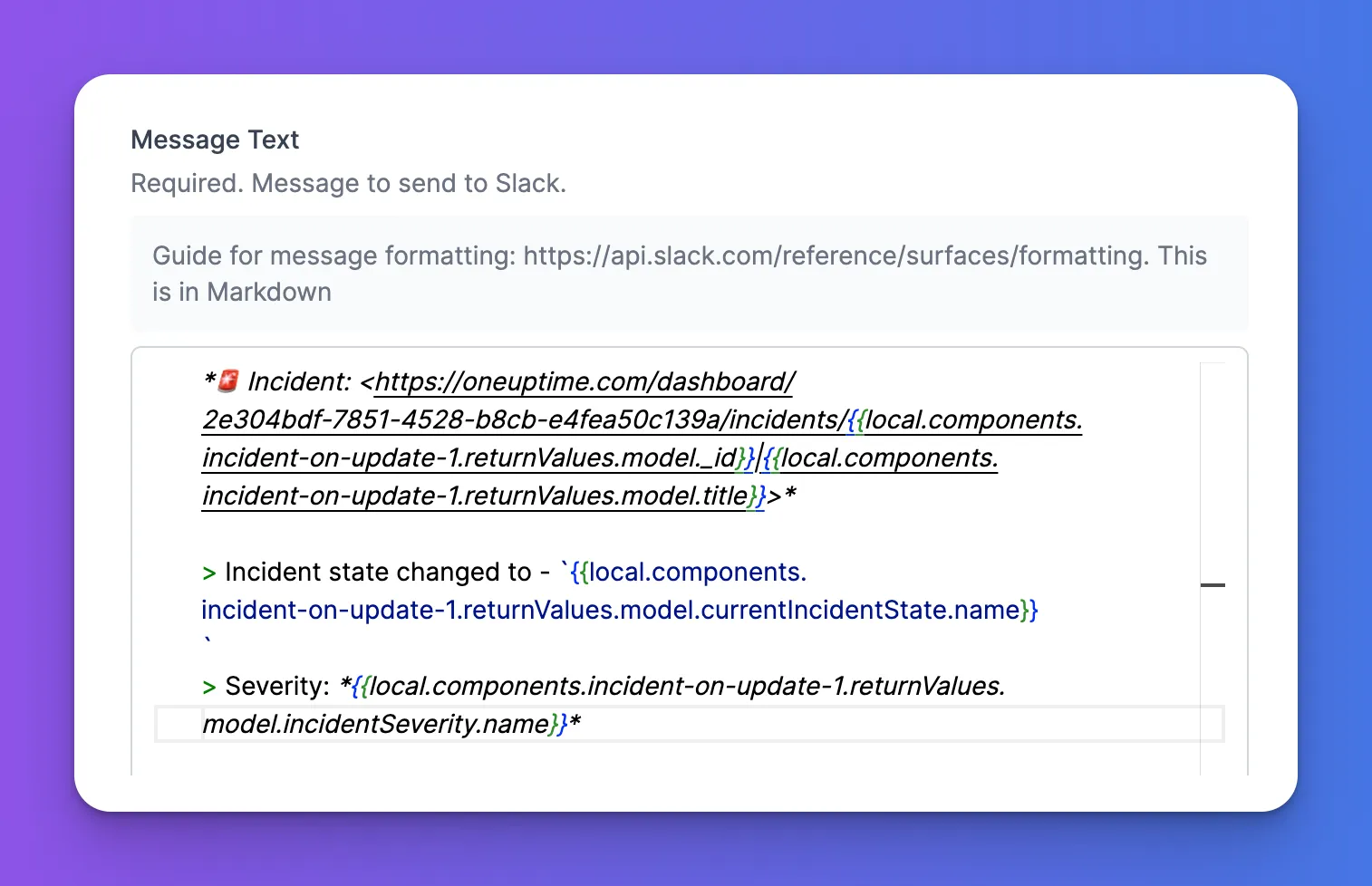
Final Result
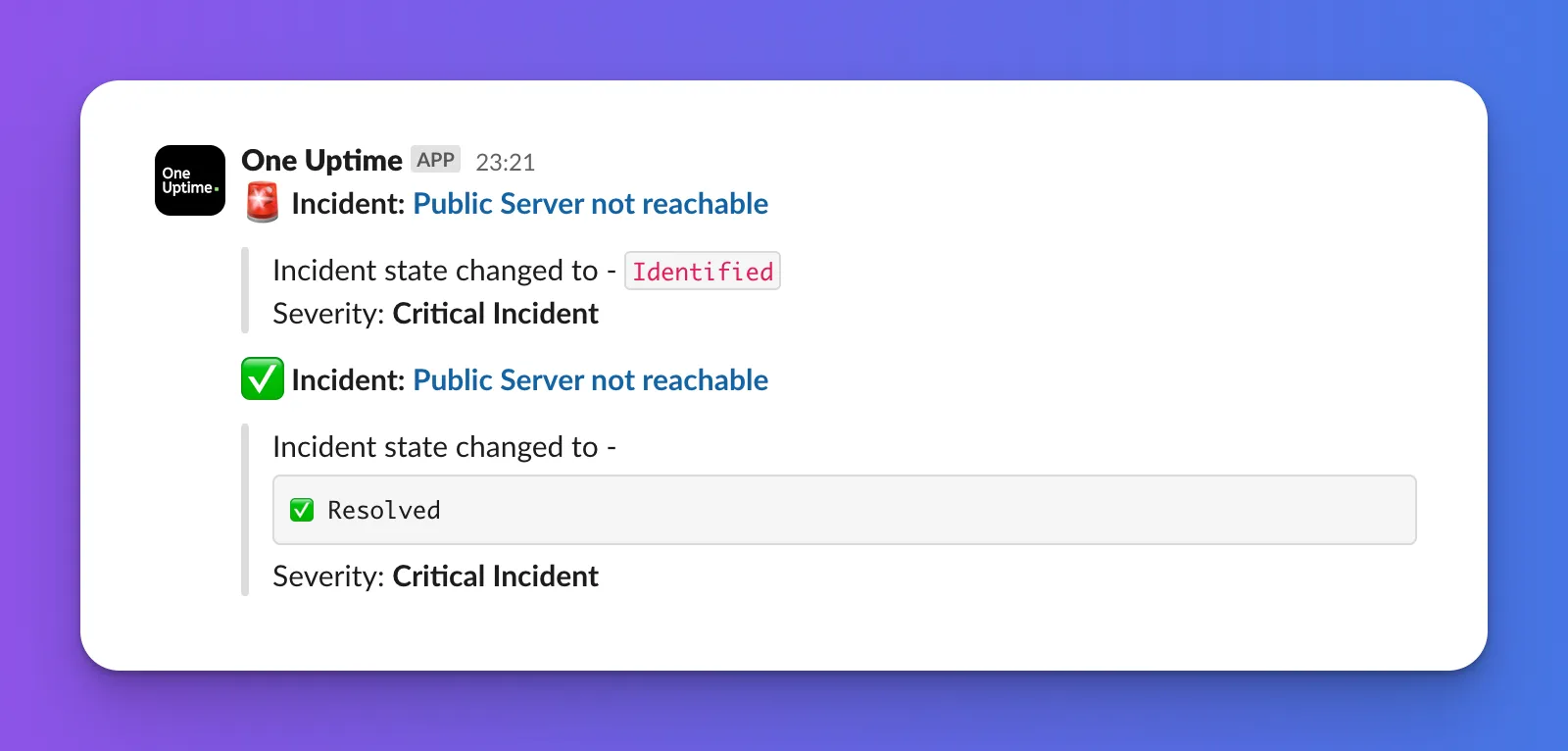
Nice Messages in Slack
It takes about an hour to get this up and running – and additional 2 hours to get into it when doing it the first time.
I hope this saved you some time. Drop me a line if it did.